MatterCAD includes all the things you need to create your ideas - out of the box!

With these simple primitives and the included tools you can create anything you can imagine.
- Cube
- Width: Set the size in X
- Depth: Set the size in Y
- Height: Set the size in Z
- Pyramid
- Width: Set the size in X
- Depth: Set the size in Y
- Height: Set the size in Z
- Half Wedge
- Width: Set the size in X
- Depth: Set the size in Y
- Height: Set the size in Z
- Text
- Name: Type whatever text you want to show
- Point Size: Set the size of the font. This is accurate when printed to the same size as a 2D printer.
- Height: Set the height you want to have the text reach up to
- Font: Select the font you would like to use
- Cylinder
- Diameter: Set the size accross the part
- Height: Set the size in Z
- Sides: Set the number of faces (or sides) around the part
- Advanced: Opens up advanced settings to control more features
- Starting Angle: The angle to start revolving the cylinder
- Ending Angle: The angle to end revolving the cylinder
- Diameter Top: The size of the top of the cylinder
- Cone
- Diameter: Set the size accross the part
- Height: Set the size in Z
- Sides: Set the number of faces (or sides) around the part
- Half Cylinder
- Diameter: Set the size accross the part
- Height: Set the size in Z
- Sides: Set the number of faces (or sides) around the part
- Torus
- Outer Diameter: Set the size accross the part
- Inner Diameter: Set the size of the inside of the torus
- Sides: Set the number of faces (or sides) around the part
- Advanced: Opens up advanced settings to control more features
- Starting Angle: The angle to start revolving the cylinder
- Ending Angle: The angle to end revolving the cylinder
- Ring Sides: The number of sides going around the ring
- Ring Phase Angle: The angle to start the ring sides
- Ring
- Outer Diameter: Set the size accross the part
- Inner Diameter: Set the size of the inside of the torus
- Height: Set the size in Z
- Sides: Set the number of faces (or sides) around the part
- Advanced: Opens up advanced settings to control more features
- Starting Angle: The angle to start revolving the cylinder
- Ending Angle: The angle to end revolving the cylinder
- Sphere
- Diameter: Set the size accross the part
- Sides: Set the number of faces (or sides) around the part
- Advanced: Opens up advanced settings to control more features
- Starting Angle: The angle to start revolving the cylinder
- Ending Angle: The angle to end revolving the cylinder
- Latitude Sides: The number of sides going top to bottom
- Half Sphere
- Diameter: Set the size accross the part
- Longitude Sides: Set the number of faces (or sides) around the part
- Latitude Sides: The number of sides going top to bottom
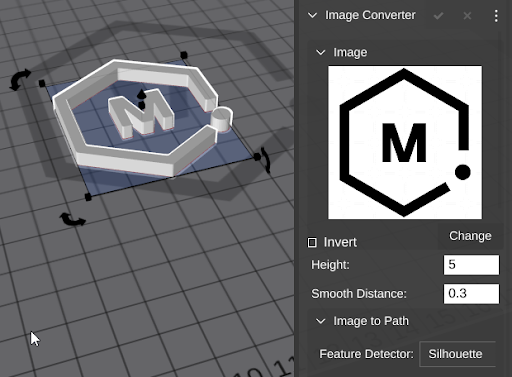
- Image Converter
- Image Converter can help you build complete extrusions from images
- You can also drag images directly to the bed and use the tools you find in the overflow menu to create all the features (and more) of Image Converter.