Selection
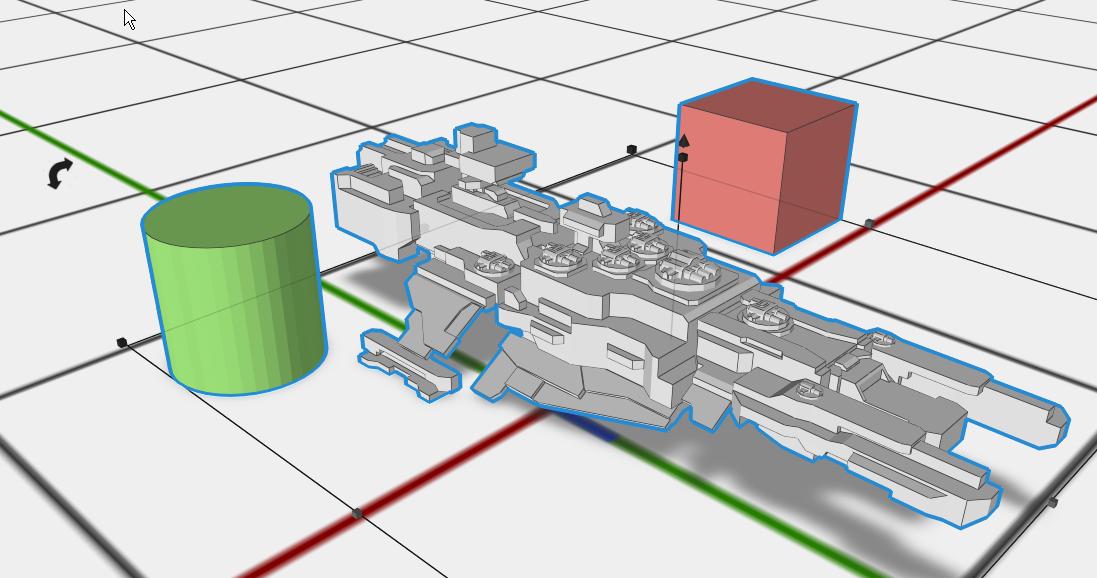
Select parts before you move them, change their settings or use an operation on them. The selected parts are outlined in the 3D view and highlighted in the Design tree.
On a Mac, press ⌘ (Command) wherever this page says Ctrl.
In the 3D View
These work while Select Parts is the chosen mode (the round buttons around the cube in the top-right corner).
- Click a part to select it on its own. If the part is already one of several selected parts, the selection stays, so you can drag them all together.
- Shift + click another part to add it to the selection.
- Ctrl + click a part, without dragging, to add it to the selection, or to take it out if it is already selected. (Ctrl + drag turns the view instead.)
- Click empty space to clear the selection.
- Ctrl + A selects every part.
Hidden parts and locked parts can’t be picked in the 3D view. See Lock and Hide.
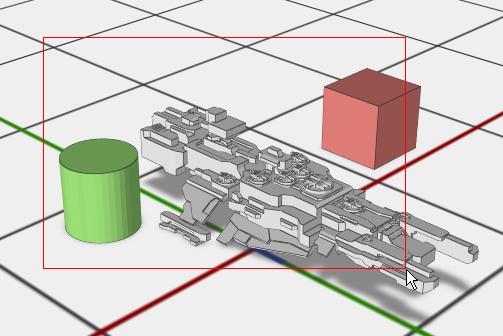
Rectangle Selection
Drag across an empty area of the 3D view to draw a rectangle. Every part the rectangle touches is selected.
In the Design Tree
The Design tree, at the top of the Design tab on the right, lists every part. Use it to pick parts that are hard to click in the 3D view, such as a part inside a group.
- Click a row to select its part. A hidden part is not selected.
- Ctrl + click another row to add its part to the selection, or to take it out when several parts are selected. This works for parts at the top level of the tree.
- After you click a row, ↑ and ↓ select the row above or below; → opens a row and ← closes it.
Clearing the Selection
- Click empty space in the 3D view.
- Press Space.
Working with a Selection
Once parts are selected you can:
- Move them by dragging, or nudge them with the arrow keys (Shift for bigger steps, Ctrl for smaller ones)
- Use an operation from the toolbar, such as Combine, Align or Array
- Change settings in the Properties panel
- Group them with G, or ungroup with Shift+G
- Rename the selected part with F2
- Right click for the part’s menu
Tips
- Escape during a drag puts the parts back where they were.
- To change a part inside a group or operation, double-click the group to edit the parts inside it, then select the part.
Related
- Editing Objects - Move, turn and resize selected parts
- Grouping - Keep parts together as a group
- Lock and Hide - Keep parts from being picked, or out of sight
- Keyboard Shortcuts - Every shortcut