Scale
Scale resizes an object with precise control over dimensions, proportions, and unit conversion. You can scale uniformly, lock specific axes together, or resize each axis independently.
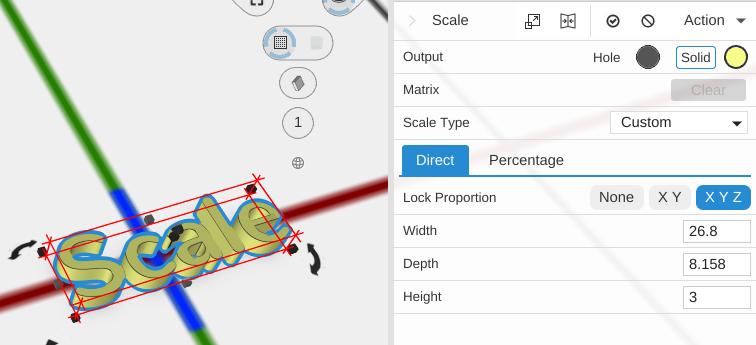
How to Use
- Select an object
- Click Scale in the Transform group of the toolbar
- Choose a Scale Type, then enter the sizes or percentages you want
You can also scale objects in the viewport by clicking and dragging the scale corner controls on a selected object.
Parameters
Scale Type
Choose your own size, or one of four unit conversions:
- Custom (default) - Enter your own sizes or percentages. Choosing Custom after a unit conversion keeps the part at its current size, so you can adjust from there
- Inches to mm - Makes the part 25.4 times bigger: for a model drawn in inches that came in too small
- mm to Inches - Divides the size by 25.4
- mm to cm - Makes the part a tenth the size
- cm to mm - Makes the part 10 times bigger
Undoing a Scale Type change gives the part back the size it had before. This works the same on every Scale, including those in designs saved by earlier versions.
With a conversion chosen, the panel shows the resulting Width Percent, Depth Percent and Height Percent as read-only values, and the rows below are hidden.
Scale Method (Custom only)
- Direct (default) - Enter the Width, Depth and Height you want, in mm
- Percentage - Enter Width Percent, Depth Percent and Height Percent of the original size
Lock Proportion (Custom only)
- None - Scale freely: each axis changes on its own
- X Y - Width and Depth stay locked together; Height changes on its own
- X Y Z (default) - Width, Depth and Height all change together, keeping the part’s proportions
Dimensions
- Width - Size along the X axis
- Depth - Size along the Y axis
- Height - Size along the Z axis
Tips
- Use “Inches to mm” if you imported an STL file that was designed in inches and appears too small
- With Lock Proportion on X Y Z, changing any one dimension updates them all
- The object’s base position is maintained during scaling so it stays on the workspace surface
- You can type exact values for precise sizing, or use the sliders for quick adjustments
Related
- Translate - Move an object
- Rotate - Rotate an object
- Fit to Bounds - Scale to fit within a specific size