Adding Existing Objects
You can bring models you already have into MatterCAD: files from your computer, parts from the library, and your saved designs.
Open a File as Its Own Design
- Click the ☰ MatterCAD menu at the left end of the tabs (on a Mac you can also use the File menu in the menu bar).
- Choose Open System File (or press Ctrl+O, ⌘O on Mac).
- Pick the file. It opens in a new tab.
Open Recent, in the same menu, lists the designs you opened lately.
Add a File to the Design You Have Open
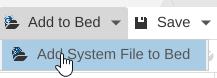
- Click the arrow beside Add to Bed in the toolbar.
- Choose Add System File to Bed.
- Pick the file. Its parts are added to the bed of the design you are working on.
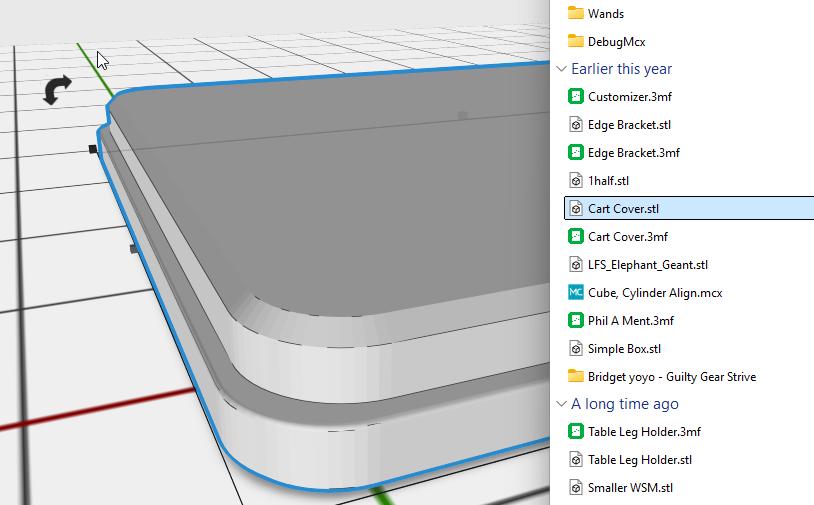
The file dialog for Open System File and Add System File to Bed offers every format MatterCAD reads (its filter reads “MCX, STL, OBJ, 3MF, AMF, STEP, SVG, DXF, Images”): MCX, STL, OBJ, 3MF, AMF, STEP/STP, SVG and DXF files, and pictures (JPG/JPEG, PNG, BMP, GIF, WEBP, TGA).
Drag and Drop
Drag files from your computer onto the 3D view. They land on the bed where you let go. MatterCAD reads these formats:
- MCX (.mcx) - MatterCAD’s own format, with every part and setting still editable
- STL (.stl) - The most widely used mesh format
- OBJ (.obj) - A common mesh format from other 3D programs
- 3MF (.3mf) - A mesh format that keeps parts and colors separate
- AMF (.amf) - A mesh format that supports colors and several materials
- STEP (.step, .stp) - The format CAD programs use to exchange solid models
- SVG (.svg) and DXF (.dxf) - Flat drawings, brought in as 2D paths
- Pictures - Brought in as an image you can turn into a 3D shape
From the Library
Add to Bed
Click Add to Bed in the toolbar. The library opens over the left side of the design. From there you can:
- Open Included for the built-in shapes, Sample Parts (finished designs such as the Coin), Tools and Design Apps
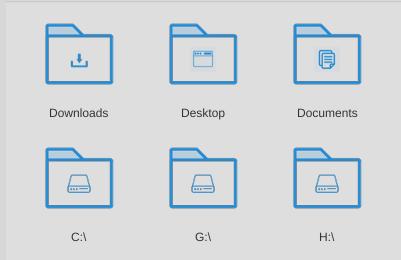
- Open Computer for the files in your Downloads, Desktop and Documents folders
- Open your Cloud Library when you are signed in
- Drag any item onto the bed, or right-click it and choose Add to Bed
The Library Tab
The Library tab shows the same library at full size. Right-click any item and choose Add to Bed to add it to the design you have open, or Open a copy to start a new design from it. Open opens a saved design (an MCX file in a folder you can save to) in its own tab; it is greyed out for STL files, built-in shapes and sample parts, which you open with Open a copy instead.
Tips
- MCX is the best format for designs you want to change later: every part and setting stays editable.
- An STL, OBJ, 3MF, AMF or STEP file comes in as a finished shape. You can move it and use operations on it, but it has no settings to change.
- Each file you add becomes its own part on the bed. Use Group to keep parts together.
Related
- Creating New Objects - Start a design from scratch with shapes
- Saving and Exporting - Save and export your finished designs
- Library - Organize your design library