Editing Objects
Select a part and handles appear on it in the 3D view: drag them to move, lift, turn and resize the part. Its settings appear in the Properties panel on the right, where you can type exact values.
On a Mac, press ⌘ (Command) wherever this page says Ctrl.
Moving Parts
- Drag the part to slide it across the bed. It snaps to the snap grid (see Camera Controls).
- Hold Shift while you drag to keep the move along one direction.
- Drag the arrow above the part to lift it off the bed or lower it. Double-click the arrow to drop the part onto whatever is under it, or onto the bed.
- Press the arrow keys to nudge the selected part one snap step (at least 0.1 mm) across the bed, in the direction the key points on screen. Hold Shift for five steps, or Ctrl for a fifth of a step.
- Press Escape during a drag to put the part back where it was.
- For an exact position, use the Translate operation.
Rotating Parts
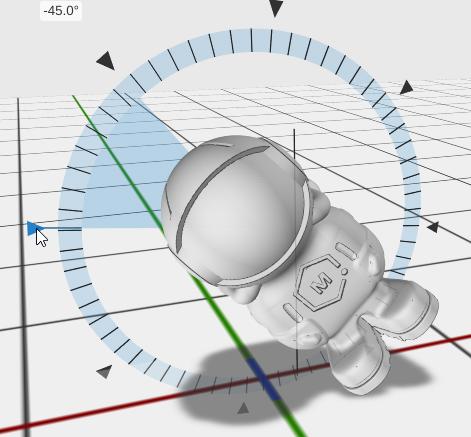
Drag one of the curved-arrow handles at the corners of the selected part. Each turns the part around one axis.
- The turn snaps to whole degrees. Move the mouse out onto the ring of marks to snap to a mark, or hold Shift to snap to 45 degrees.
- While you turn, the angle shows beside the handle. Type an angle there and press Enter to turn the part by exactly that much.
- For a lasting, editable rotation, use the Rotate operation.
Resizing Parts
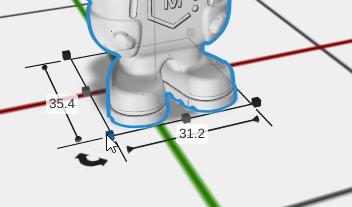
Drag one of the small cube handles at the bottom corners of the selected part. The opposite corner stays where it is.
- Hold Shift while you drag to keep the part’s proportions.
- For exact sizes, type them in the Properties panel, or use the Scale operation to scale each direction separately.
Changing Settings
When you select a part, its settings appear in the Properties panel on the right. For example:
- A Cube has Width, Depth and Height, and Round with its Radius and Round Segments for rounded edges
- A Cylinder has Diameter, Height and Sides
- A Text part has Text, Font, Point Size and Height
Type a value, drag a slider, or type an expression that starts with =, such as =20 + 5 or =wall_thickness * 2 (a value from a Variable Sheet).
Parts Inside Parts
A group or an operation holds other parts. To change one of them:
- Double-click the group or operation in the 3D view (or in the Design tree), or right-click it and choose Edit Children.
- Select and change the part you want.
- Click ‹ Back at the top of the 3D view (or the design’s name in the line above the Design tree) to go back out.
The Right-Click Menu
Right-click a part to select it and open its menu:
- Hide, X-ray and Lock (see Lock and Hide)
- Rename (or press F2)
- Hide Others and Edit Children
- Modify - every operation you can use on this part
- Cut, Copy, Paste and Paste Into
- Save As and Export - save or export just this part
- Help Docs - the help page for this kind of part, when there is one
- Remove
Right-click the empty bed for Save, Save As, Export, Cut, Copy, Paste, Arrange All Parts, Show All and Unlock All.
Tips
- Shift-click more parts to select several, then move or change them together. See Selection.
- Press G to group the selected parts, and Shift+G to ungroup.
- Press Ctrl+Z to undo any change.
- Use Align to line parts up against each other.
- Press Space to clear the selection.
Related
- Viewport Navigation - Turn, move and zoom the view
- Selection - How selecting works
- Transform Operations - Exact moves, turns and sizes
- Keyboard Shortcuts - Every shortcut