Viewport Navigation
The 3D view is where you look at and work on your design. You can turn the view around your design, move it sideways and zoom in and out with the mouse, the keyboard, the camera controls or a touch screen. None of these change your design.
On a Mac, press ⌘ (Command) wherever this page says Ctrl.
Mouse
| To | Do this |
|---|---|
| Turn the view | Right-drag, or Ctrl + left-drag |
| Move the view | Middle-drag, Ctrl + Shift + left-drag, or Shift + right-drag |
| Zoom | Scroll the wheel, Ctrl + Alt + left-drag, or Alt + right-drag |
- The wheel zooms toward the point under the mouse, so point at what you want a closer look at.
- Let go of a turning drag while the mouse is still moving and the view keeps turning for a moment. Hold Shift as you let go to stop it at once.
- On a Mac trackpad, a two-finger click and drag turns the view, and a two-finger scroll zooms. On a Mac, Ctrl + Alt + left-drag is ⌘ + ⌥ (Option) + drag.
Keyboard
| Key | What it does |
|---|---|
| W | Go Home: the standard three-quarter view, with everything you can see in frame. Hidden parts are left out, and an empty design shows the bed |
| Z | Zoom to the selected parts |
| Ctrl + Plus (+) | Zoom in |
| Ctrl + Minus (-) | Zoom out |
| Arrow keys | With nothing selected: turn the view |
| Shift + arrow keys | With nothing selected: move the view |
With a part selected, the arrow keys move the part instead. See Editing Objects.
Camera Controls
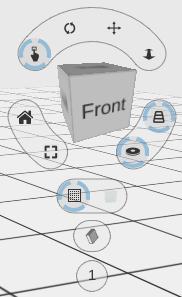
The cube in the top-right corner of the 3D view shows which way you are looking. Click a face, edge or corner of the cube to turn the view to face it, or drag the cube to turn the view.
The round buttons around the cube reset the view (Reset View, as W does), zoom to the selected parts (Zoom to Selection, as Z does), switch Turntable Mode and Perspective Mode, and choose what a left-drag does (Select Parts, Rotate View, Move View or Zoom View). Under the cube are Show Bed, the view style button, the snap button and the units button.
See Camera Controls for what every button does.
Touch Screen
- One finger - Tap to select. Drag to do what the selected mode button says: move a part in Select Parts, or turn, move or zoom the view in the other modes.
- Two fingers - Spread or pinch to zoom, and move both fingers together to move the view, in any mode.
Tips
- If you lose sight of your design, press W (or click Reset View) to bring everything back into frame.
- Select a part and press Z to look closely at it.
- Moving the view does not count as a change to your design, so it never asks you to save just because you looked around.
Related
- Camera Controls - Every button around the cube
- Editing Objects - Move, turn and resize parts in the 3D view
- Selection - How to select parts
- Mouse Controls - Every mouse control
- Keyboard Shortcuts - Every shortcut