2D Paths
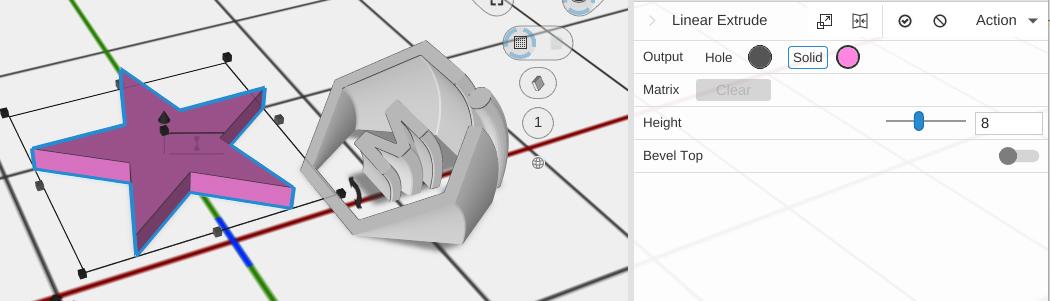
2D paths are flat shapes that you can use as the starting point for 3D objects. Add them from the 2D Primitives folder (in the Library, or under Add to Bed). Use Linear Extrude to give a path height, or Revolve to spin a path around an axis to create a 3D form.
Available Paths
In the order the 2D Primitives folder lists them:
- Box - A rectangle, with optional rounded corners
- Custom Path - Draw your own 2D path with control points
- Text 2D - Flat letter outlines: the Text object with its Output set to 2D
- Circle - A circle (or a regular polygon, with few sides)
- Ring - A circle with a hole
- Star - A star with any number of points
The Plane a Path Is Drawn On
Every one of these paths has a Plane in its Properties panel — a construction plane that decides where the flat shape lives. By default it is XY, flat on the bed.
Change it and the shape stands somewhere else without any of its own dimensions changing:
- Click the XZ or YZ tab to stand the path upright, and Flip to face it the other way
- Click Custom to show the plane’s values (under Plane Values), then type an Origin to move the whole path, a Normal to tilt it, or an X Direction to turn it within the plane, each one driven by an expression if you want it to follow the rest of the design
- Click Pick Face and then a flat face of a model, to draw on that face’s plane
Operations that consume paths flatten their inputs onto one plane before they work, so putting several paths on different planes is worth doing deliberately — see Construction Planes for how each operation chooses.
Softening Corners
Any of these paths can have its corners rounded or cut before you give it height. Use Fillet to round chosen corners to an exact radius, Chamfer to cut them off flat, or Smooth Path to soften the whole path at once.