Why are my objects the wrong scale?
-
STL files don’t store unit information. MatterCAD expects STL dimensions in millimeters, while most CAD software exports in their native units (typically inches). This causes scaling discrepancies when importing designs.
-
The best solution is to configure your design software to export STL files in millimeters. For example, in SolidWorks, use the Options button in the Save As dialog to set STL export parameters.
-
Alternatively, you can rescale the part within MatterCAD. Select it, click Scale in the toolbar’s Transform group, and choose a Scale Type such as Inches to mm in the Properties panel, or enter the sizes you want. See Scale.
How do I clear the application data?
- If reinstalling doesn’t resolve an issue, you may need to delete MatterCAD’s stored data. This data stays on your computer when you uninstall MatterCAD. To reset everything to the default settings, quit MatterCAD and remove its data folder (below). The folder can also hold designs saved in your local library, so copy any you want to keep first. You can also temporarily rename the database file (MatterCAD.db) in that folder to test whether your settings are causing a problem.
- The data folder is:
- Windows - C:\Users{user}\AppData\Local\MatterCAD (type %LOCALAPPDATA%\MatterCAD in File Explorer’s address bar to go there)
- macOS - ~/Library/Application Support/MatterCAD (in Finder, choose Go › Go to Folder and type that path)
- Linux - ~/.local/share/MatterCAD, or $XDG_DATA_HOME/MatterCAD when XDG_DATA_HOME is set
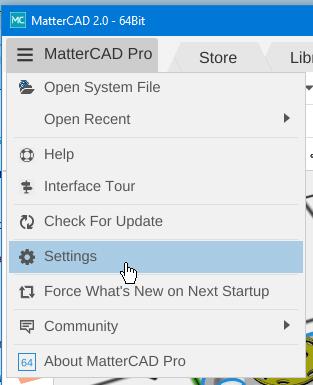
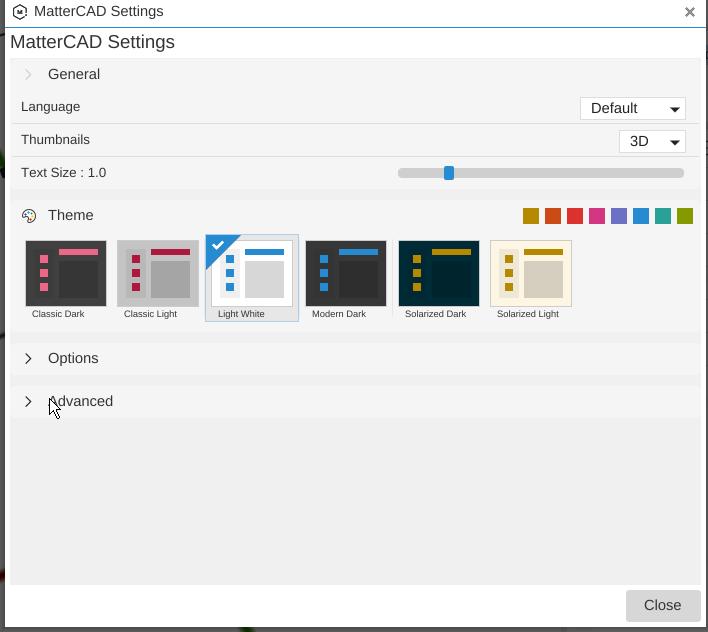
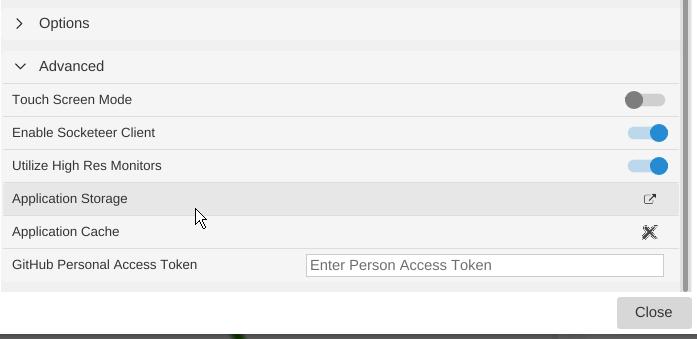
- To open the folder from MatterCAD, open ☰ MatterCAD › Settings, open Advanced, and click the button beside Application Storage (its tooltip says “Open Folder”). See Settings.