Fit to Bounds
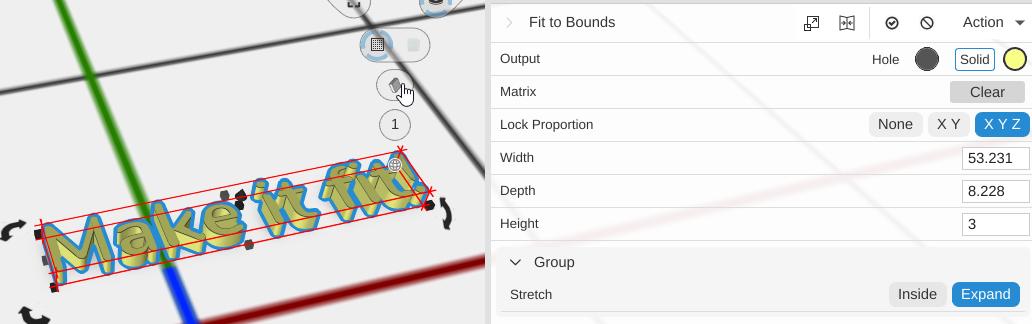
Fit to Bounds scales an object to fit within specified width, depth, and height dimensions. You can control how the object stretches and aligns within the target bounds.
How to Use
- Select an object
- Click Fit to Bounds in the Placement group of the toolbar
- Enter the target Width, Depth and Height
- Choose the proportion locking and how each axis stretches
Parameters
- Lock Proportion - Which axes keep their proportions:
- None (default) - Each axis fits on its own
- X Y - Width and Depth scale together
- X Y Z - All three scale together, keeping the part’s shape
- Width - Target width (X), in mm
- Depth - Target depth (Y), in mm
- Height - Target height (Z), in mm. Not shown for a 2D path, which has no height
Each Stretch row chooses how the part fits:
- Inside - Shrink if needed to fit, but never grow
- Expand (default) - Grow (or shrink) to fill the bounds
The rows that show depend on Lock Proportion:
- Group section (X Y or X Y Z) - One Stretch for the locked axes
- X Axis and Y Axis sections (None) - A Stretch for each axis
- Z Axis section (None or X Y) - A Stretch for the height. For a 2D path the Z Axis Stretch and Align rows are hidden, since a path has no height
Whenever an axis’s Stretch is Inside, an Align row appears for it: Min, Center (default) or Max, where the part sits within the bounds on that axis, since it may not fill them.
Tips
- Use this to resize imported models to exact target dimensions
- Lock all proportions for uniform scaling that maintains the original shape
- Use per-axis control when you need to fit a specific width but don’t care about the other dimensions
Related
- Scale - Scale by ratio or percentage instead of target size
- Fit to Cylinder - Fit within a cylindrical boundary
- Align - Position objects relative to each other