Align
Align precisely positions multiple objects relative to an anchor object. Use it to line up edges, center parts on each other, place one object on top of another, or create evenly spaced stacks.
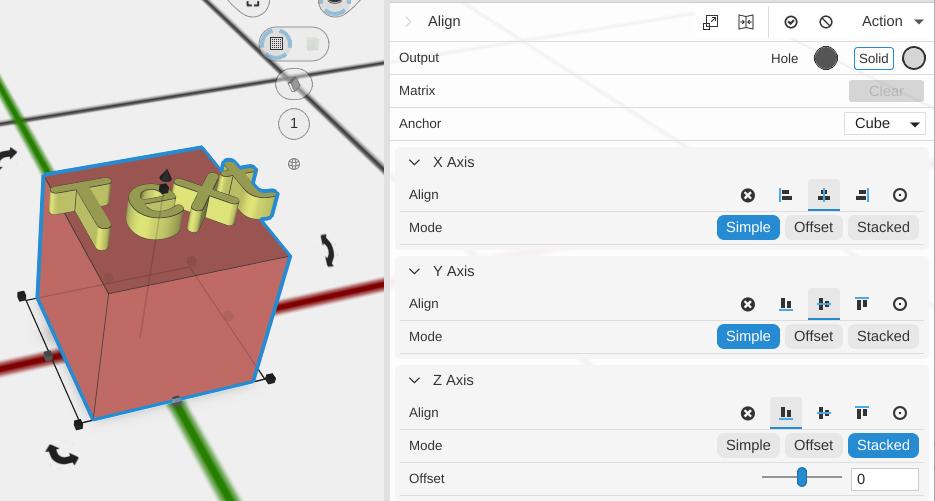
How to Use
- Select two or more objects.
- Apply the Align operation from the Placement menu.
- Choose the Anchor object. The anchor stays in place and the other objects move.
- Set alignment for the X, Y, and Z axes independently.
- Use Apply when you want to bake the aligned positions into the object tree.
Parameters
Anchor
The Anchor list selects the child object used as the reference. The anchor does not move. Every other child in the Align operation is repositioned relative to the anchor, unless an axis is using Stacked mode.
Axis Controls
Each axis has its own controls. You can align on one axis, two axes, or all three. The minimum and maximum edges are named for the axis:
- X Axis - Min is left, Max is right.
- Y Axis - Min is front, Max is back.
- Z Axis - Min is bottom, Max is top.
For each axis:
- Align - Chooses the anchor reference point for that axis. Use None to leave positions unchanged on that axis.
- Mode - Controls how the selected alignment is applied:
- Simple - Match each moving object’s corresponding edge, center, or origin to the anchor. No offset is used.
- Offset - Choose which part of the moving object should land on the anchor reference, then add spacing with Offset.
- Stacked - Place objects one after another along that axis, using Offset as the gap between them.
- SubAlign - Available in Offset mode. Chooses the part of the moving object to place on the anchor reference. If SubAlign is None, Align uses the same edge, center, or origin selected by Align.
- Offset - Available in Offset and Stacked modes. Adds distance along that axis and supports expressions.
Alignment Modes
Simple
Use Simple when matching like-to-like positions. For example, X Align: Center moves every non-anchor object so its X center matches the anchor’s X center. Z Align: Min moves every non-anchor object so its bottom sits at the anchor’s bottom height.
Offset
Use Offset when the part of the moving object should be different from the anchor reference. For example, to place an object on top of the anchor:
- Set Z Align to Max (top).
- Set Z Mode to Offset.
- Set Z SubAlign to Bottom.
- Set Z Offset to the desired gap, or leave it at
0for direct contact.
This places the moving object’s bottom at the anchor’s top, with optional spacing.
Stacked
Use Stacked to chain multiple objects along an axis. Objects are processed by name, then by internal ID, so naming objects clearly gives predictable stack order.
In Stacked mode, each moving object is placed against the previous reference on that axis:
- Min alignment stacks toward the positive direction, such as left-to-right on X or bottom-to-top on Z.
- Max alignment stacks toward the negative direction, such as right-to-left on X or top-to-bottom on Z.
- Center and Origin alignment use the offset between each object’s center or origin.
Use Offset in Stacked mode to set the gap between objects.
Examples
- Center objects on the bed footprint - Choose the object that should stay fixed as the Anchor, then set X Align and Y Align to Center.
- Place one object on top of another - Set Z Align to Max (top), Z Mode to Offset, and Z SubAlign to Bottom.
- Add a precise gap from an edge - Use Offset mode, choose the moving object’s edge with SubAlign, then set Offset to the spacing you need.
- Line up several objects end-to-end - Set X Align to Min (left), X Mode to Stacked, and use X Offset for the gap.
- Build a vertical stack - Set Z Align to Min (bottom), Z Mode to Stacked, and use Z Offset for the space between objects.
Tips
- The anchor object stays in place; other objects move to align with it.
- You can use different modes on different axes, such as Stacked on X while using Center and Simple on Y.
- Use object names to control Stacked order when several objects are aligned at once.
- Align is non-destructive until applied. You can change the settings at any time to re-align the children.
- Use Origin when you need to line up modeling origins rather than bounding-box edges.
Related
- Fit to Bounds - Scale an object to fit specific dimensions
- Translate - Move by a specific distance
- Grouping - Group aligned objects to keep them together