Subtract
Subtract cuts the parts you choose out of the parts you did not. Select the part to keep first, then the shapes to cut from it, and press Subtract: the first object you selected is the base, and every object you selected after it is cut from it. Use Part(s) to Subtract to change which shapes cut; everything not ticked is the base that gets cut.
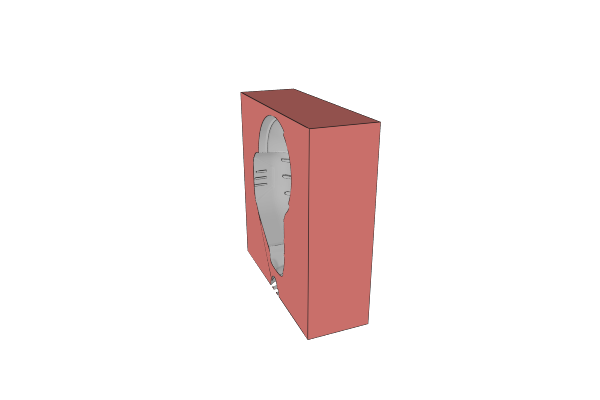
Combine, Subtract, Intersect and Subtract and Replace are all performed by one Boolean object – the toolbar button creates it with Subtract already selected, and you can switch to any of the other three at any time from the row of operation icon tabs at the top of the Properties panel.
Subtract works on solids and on 2D paths. It looks at what you gave it and does the right kind of operation, so subtracting one path from another produces a path and subtracting one mesh from another produces a solid.
How to Use
- Select the object to keep, then hold Shift and select the objects to cut away from it
- Click Subtract in the toolbar – every object you selected after the first is cut from the first
- Use Part(s) to Subtract to change which children are the cutting shapes
- Change your mind at any time by clicking a different operation tab at the top of the Properties panel (each tab shows the operation’s icon, hover for its name) – the shape rebuilds with the new operation
Parameters
- Operation - Which boolean to perform. Shown as a row of icon tabs at the top of the panel
- Keep Inside Out Geometry - Treat an inside-out shell as solid material instead of letting it cancel out the volume around it. Turn this on when a model that should be solid comes back with parts missing. It forces the slower, exact boolean engine
- Repair Winding Order - Rewind each part’s inside-out shells before the boolean runs. This fixes the geometry once rather than changing what every later operation counts as solid, and is usually the better of the two answers to an inside-out model
- Part(s) to Subtract - Which children are the cutting shapes
- Keep Subtracted Parts - Leave the parts that were cut away in the scene rather than discarding them
Tips
- Objects have to overlap for Subtract to do anything
- To cut a through-hole, make sure the cutting object passes completely through the base
- For a simple hole, the Hole primitive is already set up to subtract
- The cutting objects stay in the design tree, so you can move or resize them and the cut updates
- If a result looks wrong, check that the source objects are watertight. Repair Winding Order fixes inside-out shells; Repair fixes broader damage in imported models
Related
- Combine - Merge multiple objects into a single solid shape
- Intersect - Keep only the volume where objects overlap
- Subtract and Replace - Subtract one shape and keep the piece that was cut away
- Plane Cut - Cut with a flat plane instead of another shape
- Hole - A cube pre-configured to subtract
- Repair - Fix damaged imported meshes before a boolean
This page also covers the older Subtract objects still found in designs saved before the operations were merged. They keep working exactly as they did; new designs use the shared Boolean object with the Subtract operation selected.