Erode
Erode shrinks a solid inward by at least the radius you set, never less. Flat faces move inward. Inside corners become rounded, holes become larger, and thin features can disappear or split the part into separate pieces. All surviving pieces are kept.
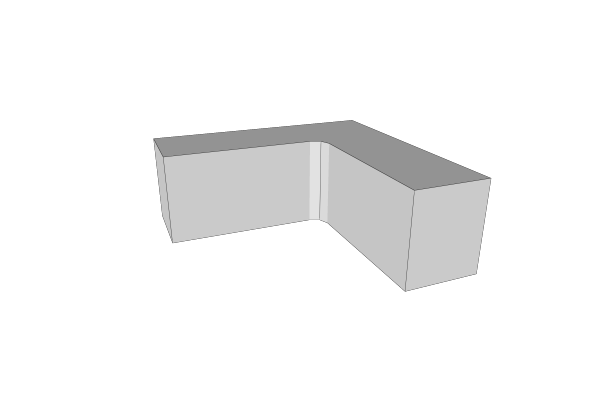
How to Use
- Select a solid part
- Click Erode in the Round & Offset group of the toolbar
- Set Radius to the smallest distance to shrink
- Wait for the operation to finish; use Cancel in the task area to keep the previous result
On a detailed part, MatterCAD builds fast by default. Every surface still moves at least the radius, but outside edges that should stay sharp can come out slightly rounded, and a note in the panel says so. For perfectly sharp edges, check Exact at the top of the panel; it is slower, and on a large part it can take minutes. Simple parts are always built exactly, so the checkbox doesn’t show for them.
With Exact checked, dragging the Radius slider shows a quick, see-through preview, and a Preview row appears in the task area. Let go to build the exact result; it replaces the preview, with a progress bar and the time left. Grab the slider again to stop that build and return to the preview.
Parameters
- Radius - The least distance surfaces move inward (default: 1 mm). Must be greater than zero. Some faces can move a little further, never less
- Exact - Shown only on detailed parts (256 triangles or more). Check it for the precise result with perfectly sharp edges; it is slower. Unchecked, the part builds in seconds
- Segments - Only used by exact builds. The detail of the rounding ball (default: 16). More segments produce finer curves and bring the result closer to exactly the radius set, but take longer, especially on parts with pockets or notches
When It Refuses
The radius must be smaller than half the source bounding box’s smallest side, and a little smaller still because the rounding ball reaches slightly past the radius. That is an upper bound, not a guarantee that the ball fits inside the shape. If the radius is too large, the message tells you the largest radius that works; set Radius below it. If no solid remains after erosion, the operation refuses the result and leaves the source visible. A thin feature disappearing is allowed as long as some solid remains.
With Exact checked, convex parts, such as boxes with no pockets or notches, still erode quickly. Parts with inside corners take longer.
Tips
- This changes the whole part’s dimensions. To round edges while broadly preserving the original dimensions, use one of the Round operations below
- Radius is measured in the source part’s own coordinates. Non-uniform scaling applied afterward also stretches the rounding
- These operations require a solid. Use Inflate Path to grow or shrink a 2D path
Related
- Dilate - Grow a solid outward
- Round All Edges - Erode followed by Dilate at the same radius
- Round Inside Edges - Dilate followed by Erode at the same radius
- Fillet - Round only the edges you pick