Round Inside Edges
Round Inside Edges fills every inside corner of a solid with a bead of one radius. There is nothing to pick and nothing to select – you give it a radius and it softens every inside corner in the part.
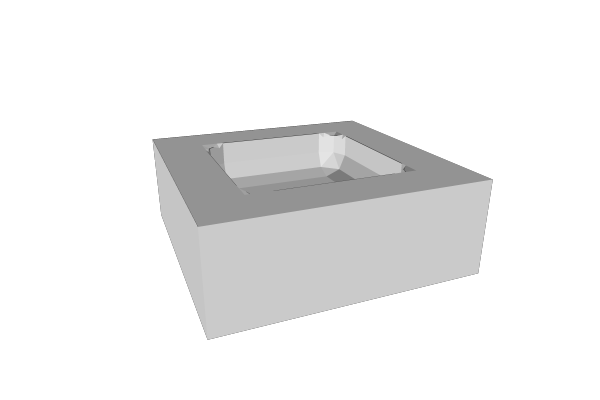
It is the mirror image of Round All Edges. That one rounds the edges that stick out; this one fills the ones that go in. Neither touches the other’s edges, so the two together round everything – run Round Inside Edges, then Round All Edges over it. Chained that way, the surface comes out clean and smooth, with no thin slivers where the inside bead meets the rounded ends.
This operation is Dilate followed by Erode at the same radius. Use those operations separately when you want just the shrink or grow step.
How to Use
- Select a solid part
- Click Round Inside Edges in the Round & Offset group of the toolbar
- Set the Radius
- Wait – this one takes real time, and shows a progress bar while it works
Parameters
- Radius - How far every inside corner is filled in. It is the radius of the largest ball that would roll around the inside of the part (default: 1 mm)
- Segments - How finely the rounding ball is drawn (default: 16; the slider runs 8 to 24 in steps of 4). This is the single biggest lever on how long the operation takes. 16 puts four flat facets across each rounded edge. Every 4 more segments add one more facet, so the round looks smoother, and make the operation take longer, because the ball’s detail is paid for on every triangle of the part. 8, the fewest, gives two facets; a smaller number is raised to 8. A round in a design you open keeps the Segments it was saved with, or 12 if the file doesn’t give one
It Adds Material, and Never Removes Any
This is the one thing to hold on to about Round Inside Edges, and everything else follows from it:
- The part can only get bigger. Every face stays where it was and material appears in the corners. Nothing is cut away, so nothing you drew can be lost
- The part can never outgrow its own outline. However large the radius, the result still fits inside the shape you started with – in fact inside the shape you would get by stretching a sheet over it. So it will not suddenly be too big for the bed
- There is no radius it will refuse. Unlike Round All Edges, which turns down a radius too big for the part to survive, this one has nothing to protect the part from
What a big radius costs is not the part but its shape. As you raise the radius, pockets fill in, slots bridge over and holes close up – and at the limit you get the shape a sheet stretched over the part would take. That is a real answer to what you asked for, and it arrives gradually rather than all at once, so watch the preview and back the radius off when the part stops looking like itself.
The other end is quiet rather than dramatic: a part with no inside corners at all – a plain box, a cylinder, a cone – comes back exactly as it went in. That is correct, not a failure. There was nothing to fill.
How Long It Takes, and How to Stop It
Round Inside Edges is the slower of the two whole-part rounding operations, and it is slower on every part, including the simple ones.
The reason is worth knowing because it explains a surprise. Round All Edges has a shortcut it can take on a part with no dents in it, which makes those parts finish in a blink. This operation cannot use that shortcut – not even on a plain box. It works in two passes, and the shortcut only applies to the second one, which by then is no longer working on your part but on a swollen version of it. So on a plain box, where Round All Edges is instant, this one still does the full job. On a bracket with real corners in it, expect it to take about half as long again as Round All Edges on the same part.
While it runs there is a progress bar in the task area with a Cancel button beside it. Cancelling leaves the part as it was and costs nothing but the time already spent.
Two things keep the bill down:
- Keep Segments low. It multiplies into every step of the work
- Round last. Do it once, at the end, on the finished shape
Dragging the Radius slider does not queue one run per pixel: the operation coalesces the changes, so a drag of any length costs about two runs – the one it started with and the one for where the slider ended up.
When It Refuses
Only three things are turned away, and none of them is about the radius being too big:
- “Round Inside Edges fills the inside corners of a solid. Use Fillet to round the corners of a 2D path.” – there is nothing for a ball to roll along on a flat path. Use Fillet instead
- “Round Inside Edges needs a radius greater than zero.”
- “Round Inside Edges came back with nothing…” – this one should never happen. Filling corners can only add material, so an empty result means the part was not a closed, watertight solid to begin with. Run Repair on it and try again
When to Prefer It Over Per-Edge Fillets
Use Round Inside Edges when:
- you want every inside corner softened and do not care which is which – the inside of a case, a pocketed bracket, a mould
- you want to take the stress risers out of a part: sharp inside corners are where things crack, and this rounds all of them at once
- the part is imported or organic, with far too many corners to pick sensibly
Use Fillet when:
- only some inside corners should be filled, or different ones want different radii
- the part is large or detailed and you do not want to pay for whole-part work
- you want the selection to be a parametric part of the design that survives changes to the shape underneath
Tips
- The radius is measured in the source part’s own units, so a part with a non-uniform scale on it fills into an oval rather than a circle. Scale before rounding, not after
- It fills inside corners only. If you also want the outside edges softened, add Round All Edges over it – the two do not overlap, and Round All Edges on top of Round Inside Edges gives a clean, smooth surface where they meet
- Sharp inside corners are also where a part under load cracks first. A small radius here is a real strength improvement, not just a cosmetic one
- The result is a new solid, so booleans, transforms and everything else work on it normally
Related
- Round All Edges - The mirror image: rounds every outside edge instead
- Fillet - Round the edges you pick, inside or out, at a radius you set
- Chamfer - Cut chosen edges flat
- Hollow Out - Another whole-part operation with a similar cost profile
- Reduce - Reduce a heavy mesh before rounding it