Fillet
Fillet rounds the edges you pick. On a solid it rolls a ball of the radius you give along each selected edge and leaves the surface that ball sweeps out. On a 2D path it rounds the corners instead.
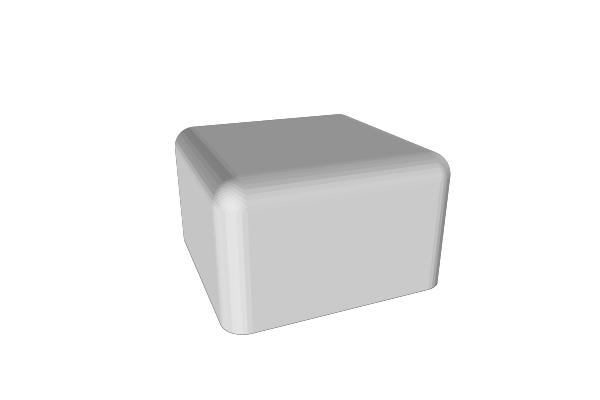
Fillet and Chamfer are one tool with two profiles – Fillet leaves an arc, Chamfer leaves a flat cut – so everything on this page about picking edges and the messages the panel shows is true of both. The Fillet and Chamfer toolbar buttons only choose which profile it starts with; see Switching to Chamfer to change it afterwards. If you want every outside edge of a part rounded at one radius and do not want to pick anything, use Round All Edges instead.
How to Use
- Select a part, or a 2D path
- Click Fillet in the Round & Offset group of the toolbar
- On a solid, click an edge in the 3D view to add it. On a path, every corner sharper than the Bend Threshold is rounded straight away (see Choosing Corners on a 2D Path)
- Set Radius in the Properties panel
On a solid nothing is rounded until you pick an edge: a fresh Fillet shows the part unchanged, waiting for a click.
One Fillet, one radius. Every edge a Fillet selects is rounded at the same radius. If part of your shape needs a different radius, apply a second Fillet on top of the first and pick those edges there.
Picking Edges on a Solid
Selection Mode decides what a click picks:
- Chain (default) - the edge and the edges that continue smoothly from it, so one click can take a whole rim around a curve
- Edge - one straight crease. Click a face away from its edges to pick that face’s whole rim
- Point - a tip or corner of the part, such as the point of a cone, rounded on its own
Move the mouse over the part with the Fillet selected and the edge under the cursor lights up in white. Click it to add it. Click an edge that is already selected and it is removed again.
One click can mean several things. The same click can honestly mean several different things, and MatterCAD offers all of them rather than guessing:
- the edge on its own – just what you clicked
- the loop it belongs to – the run of edges that continues smoothly from it
- that loop read more coarsely – the same walk with the surface treated as smoother, so it does not stop at the facets of a curved wall
A small badge sits beside the edge you are hovering and names the reading being offered – “1 edge”, “40 edges, chain” – with an arrow each side for stepping to the reading next door. The arrows only show the reading; they commit nothing, so when the one you want is lit, click normally to keep it. This matters most on rounded shapes: the rim of a tessellated cylinder is a single flat facet at the tightest reading and the whole circle at the loosest. Where a pick has only one reading there is nothing to step to and the badge shows no arrows.
With nothing hovered the badge names the reading of whichever row in the Edges list is highlighted, and its arrows change that group instead of the pick.
Each selection you commit becomes a row in the Edges list, labelled with what it is and how many edges it came to – “1. Edge, 1 edge”, “2. Chain, 64 edges”, “3. Face Group, 4 edges”. The list is what you have selected, not how big the round is; every row carries:
- a colour swatch showing the colour that group’s edges are drawn in
- a button that lights the group up in the 3D view, so you can tell which row means which edges
- a remove button, which stops beveling those edges
- a reading dropdown, offering the same readings of that pick the badge does – “1 edge”, “40 edges, chain”, with the tolerance named as well when more than one chain is on offer
Choosing a different reading of an edge a group already holds does not add a second group: the new reading takes the old one’s place in the list, keeping its slot and its colour. Like every other edit to the list, it can be undone.
You can also drag the size handle that sits on each selected run in the 3D view to set the radius by eye. There is one number, so every handle moves together and any of them will do. Press Esc during the drag to cancel it.
Choosing Corners on a 2D Path
When the thing you filleted is a 2D path, the panel shows Choose Corners instead of Selection Mode and Edges. Its three tabs decide which corners are rounded:
- Angle (default) - every corner that bends more than the Bend Threshold is rounded. A new Fillet on a path rounds all its sharp corners this way
- Select - only the corners you click. A small ball appears at every corner of the path; click one to round it, click it again to leave it sharp. The picked corners are listed under Corners. With none picked, nothing is rounded
- Formula - an expression in the Formula box decides each corner: the corner is rounded when the result is not zero. It must start with
=. It can useCornerIndex(which corner along its contour, from 0),CornerCount(how many corners that contour has),CornerXandCornerY(where the corner is),CornerAngle(how far it bends, in degrees; 0 is straight) andCornerContour(which contour it is on, from 0). The default,=mod(CornerIndex, 2) == 0, rounds every other corner
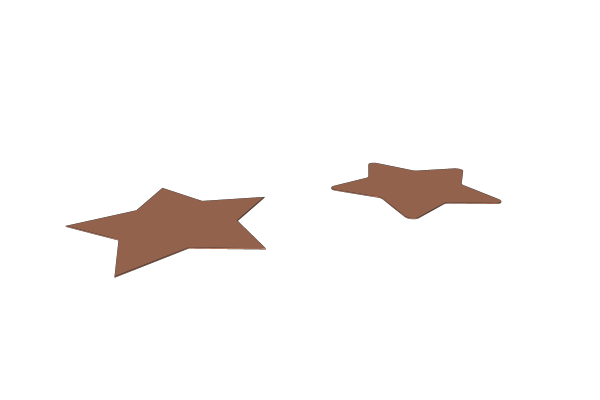
The original star path on the left, the same path with a 1.5 mm Fillet on every corner on the right.
Switching to Chamfer
The two icon tabs at the top of the Properties panel, Fillet and Chamfer (hover one to see its name), switch the profile in place. Click Chamfer and the same edges are cut flat instead of rounded; click Fillet to round them again. The switch keeps everything you set up: the edges and corners you picked, the size, and the other settings. Only the profile changes, so it is a quick way to compare the two on the same edges.
- The size keeps its number. On a Fillet it is labelled Radius, on a Chamfer Distance; on a square edge both cut back the same amount along each face, so the edge’s footprint does not move when you switch
- Segments only shows on a Fillet, because a flat cut has no curve to smooth. The number is kept for when you switch back
- A Fillet still called “Fillet” is renamed “Chamfer” when you switch, and back again. A name you gave it yourself stays. Formulas that refer to it by name follow the rename
- One undo puts the switch back
Parameters
- Fillet / Chamfer - The profile: round or flat. Switching keeps the picked edges and the size (see above)
- Choose Corners - 2D paths only: Select, Angle (default) or Formula (see above)
- Radius - The radius every edge and corner this Fillet selects is rounded at (default 2 mm; the slider runs 0.1 to 20): the radius of the largest ball that would roll along the edge. One Fillet has one radius; for a second radius, apply a second Fillet. In a formula it is called
Size(for example=Fillet.Size), whether the operation is a Fillet or a Chamfer, so a formula keeps working when you switch - Segments - How many straight steps each arc is drawn with (default 8; 1 to 30). More segments make a smoother curve and a heavier mesh
- Selection Mode - Solids only: Chain (default), Edge or Point (see above)
- Bend Threshold - How far the surface has to bend at an edge, or a path at a corner, before it counts as one (default 20 degrees; 1 to 90). Anything flatter is read as smooth: it is not offered for picking and is not rounded. This keeps the facets of a curved wall, or a curve made of many short segments, from being rounded one by one
- Edges - The list of selections on a solid (see above)
- Formula - 2D paths in Formula mode only: the expression that decides each corner
- Corners - 2D paths in Select mode only: the corners you clicked. Empty means none
When It Refuses
A fillet either fits or it does not, and MatterCAD will not quietly shrink one to make it fit – a radius you typed is a dimension, and silently changing it would make the part lie about itself. So a selection that does not fit is skipped, with a warning triangle on its row and a sentence saying why.
The most useful ones tell you the largest size that would have fitted:
A size of 5 reaches further across the face at (10, 0, 20) than the face is wide. The most that fits there is about 3.2.
A size of 4 runs into the bevel coming the other way across the face at (0, 12, 5), so the two of them do not both fit. The most that fits there is about 1.9.
Read those as “type this number or less”. The point named in the message is where the problem is, so you can find it on the part.
Others describe a shape the round cannot be swept along at all:
- “The two faces along this edge lie in the same plane, so there is no corner to bevel.” – the edge is a triangulation seam across a flat area, not a real edge
- “The faces along this edge meet at N degrees, which is too sharp/flat to bevel.” – a knife edge or a nearly flat join
- “The group resolved to no edges at all.” – the shape changed under the Fillet and the edge that was picked is no longer there. Pick it again
- “The cut removed the whole part, so nothing was left to keep.” – shown above the list rather than on a row, because it is about the operation and not any one group. The sizes are far too big for the part
- “This tangent chain never grew past the edge that was picked… Choose a coarser reading of this pick - from the row’s dropdown in the Edges list, or from the badge beside the edge in the 3D view - because the tolerance ladder goes up to 30 degrees, which reads a tessellated surface as one surface and walks the whole run.” – you picked a loop on a curved surface at the tightest reading, so the walk stopped at the first facet. Both of the controls it names are on screen while you read it, and either one re-reads the group in place
The panel also shows advisories above the list, in a different colour and with a different glyph. Nothing failed; they tell you about a repair that was made to your source so the fillet could run:
This part was inside out - every one of its faces pointed into the solid rather than out of it - and has been turned right way out so it could be bevelled. The bevelled part comes back facing the right way; check that it is the shape you expect.
Only the working copy is changed, never your model. If you would rather fix it once and for all, use Repair on the source.
One repair is made silently. A mesh made of loose, unwelded triangles – which many STL files are – has no shared edges at all, so the first look for edges finds none; when that happens the working copy is welded and the look is repeated. Putting back topology the file never carried does not change what the part is, which is why it needs no advisory. If a part still shows no edges to pick after that, there really are none to find.
Tips
- Fillet last. Round the edges of a shape after you have finished cutting and combining it, so you do not have to re-pick edges every time the shape changes
- Selections survive a rebuild. They are stored as geometry, not as edge numbers, so changing the size of the box under a Fillet keeps the same edges rounded
- If a whole rim should be rounded, hover one edge of it, step the badge on once so the whole rim lights up, and click – that is nearly always faster and more robust than picking edges one at a time. If you have already committed the single edge, the row’s reading dropdown gets you there without re-picking
- Keep segments low while you work and raise them at the end. Every segment is mesh
- Two radii on one part are two Fillets. Round the edges that share a radius, then apply another Fillet for the rest
- Concave edges get a bead of material added into the corner rather than material cut away, which is what a fillet means on the inside of a shape
- If every edge of the part should be rounded at one radius, Round All Edges needs no picking at all
- In a node graph, a Fillet node rounds every sharp edge until you wire a selection into its Selection socket - see Choose Edges with Selection Nodes there
Related
- Chamfer - The same tool with a flat cut instead of a round
- Round All Edges - Round every outside edge at one radius, with nothing to pick
- Repair - Fix an imported mesh before beveling it
- Smooth Path - Smooth a 2D path as a whole rather than rounding chosen corners
- Linear Extrude - Give a filleted 2D path some height