Chamfer
Chamfer cuts the edges you pick flat, leaving a flat face where the edge was (at 45 degrees on a square edge). On a 2D path it cuts the corners off instead.
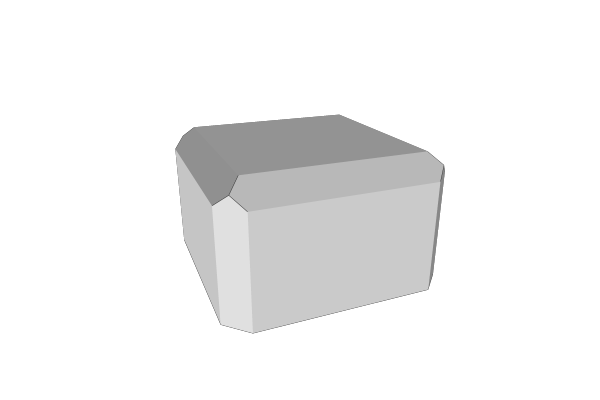
Chamfer and Fillet are one tool with two profiles – Chamfer leaves a flat cut, Fillet leaves an arc. Picking edges, the one size a whole feature is cut at, and the messages the panel shows work identically in both, and are described in full on the Fillet page.
Switching to Fillet. The two icon tabs at the top of the Properties panel, Fillet and Chamfer, switch the profile in place. Click Fillet and the same edges are rounded instead of cut flat, keeping the edges and corners you picked and the size; click Chamfer to cut them flat again. A Chamfer still called “Chamfer” is renamed “Fillet”, and a name you gave it yourself stays. One undo puts the switch back. The details are under Switching to Chamfer on the Fillet page.
How to Use
- Select a part, or a 2D path
- Click Chamfer in the Round & Offset group of the toolbar
- On a solid, click an edge in the 3D view to add it. On a path, every corner sharper than the Bend Threshold is cut straight away
- Set Distance in the Properties panel
On a solid nothing is cut until you pick an edge: a fresh Chamfer shows the part unchanged, waiting for a click.
One Chamfer, one distance. Every edge a Chamfer selects is cut back by the same amount. If part of your shape needs a different distance, apply a second Chamfer on top of the first and pick those edges there.
Picking Edges
Selection Mode decides what a click picks: Chain (default) takes the edge and the edges that continue smoothly from it, Edge takes one straight crease (click a face away from its edges to take its whole rim), and Point takes a tip or corner of the part.
Hover the part and the edge under the cursor lights up white; click to add it, click it again to remove it. One click can mean several things – the edge alone, the loop it belongs to, or that loop read more coarsely so it does not stop at the facets of a curved wall. A small badge beside the hovered edge names the reading on offer – “1 edge”, “40 edges, chain” – with an arrow each side for the reading next door. The arrows only show you a reading; a normal click commits it.
Every committed selection becomes a row in the Edges list with its own accent colour, a button that lights it up in the 3D view, a remove button, and a reading dropdown offering that pick’s other readings. Choosing one of them replaces that group in its own slot rather than adding a second, and can be undone. There is no segment count anywhere on a Chamfer: a flat cut is one straight step across, and a second step would only put a point on a line.
On a 2D path the panel shows Choose Corners instead, with three tabs: Angle (default) cuts every corner that bends more than the Bend Threshold; Select cuts only the corners you click (small balls appear at each corner; click one to cut it, click it again to leave it sharp; with none picked nothing is cut); Formula cuts each corner its Formula expression says yes to. The corner variables are listed under Choosing Corners on a 2D Path on the Fillet page.
Parameters
- Fillet / Chamfer - The profile: round or flat. Switching keeps the picked edges and the size
- Choose Corners - 2D paths only: Select, Angle (default) or Formula
- Distance - How far back from the edge the cut starts, measured along each of the two faces the edge joins (default 2 mm; the slider runs 0.1 to 20). Every edge this Chamfer selects is cut back by it; for a second distance, apply a second Chamfer. In a formula it is called
Size(for example=Chamfer.Size), whether the operation is a Chamfer or a Fillet, so a formula keeps working when you switch - Selection Mode - Solids only: Chain (default), Edge or Point
- Bend Threshold - How far the surface has to bend at an edge, or a path at a corner, before it counts as one (default 20 degrees; 1 to 90). Anything flatter is read as smooth: it is not offered for picking and is not cut
- Edges - The list of selections on a solid
- Formula - 2D paths in Formula mode only: the expression that decides each corner
- Corners - 2D paths in Select mode only: the corners you clicked. Empty means none
On a 2D path the distance is the setback along each edge from the corner, not a radius. That is deliberate: one radius applied to corners of different angles would set each of them back by a different amount, which is not what the number you typed into Distance means.
When It Refuses
A chamfer that does not fit is skipped with a warning triangle on its row and a sentence saying why – MatterCAD never quietly shrinks a size you typed. The messages that can are worded to tell you what would have fitted:
A size of 5 reaches further across the face at (10, 0, 20) than the face is wide. The most that fits there is about 3.2.
Type that number or less. Everything on the Fillet page under “When It Refuses” – the other refusals, the inside-out advisory and the silent weld of unwelded imports – applies to Chamfer word for word.
Tips
- A chamfer is the cheaper edge break: it adds two triangles per edge where a fillet adds a whole arc’s worth
- Distance is measured along the faces, not across the cut. A 2 mm chamfer takes 2 mm off each face and leaves a cut face about 2.8 mm wide
- Chamfer and Fillet can be stacked: chamfer one set of edges, then fillet the result’s new edges
- If every outside edge should be broken at one size and you do not care whether it is round, Round All Edges needs no picking
- In a node graph, a Chamfer node cuts every sharp edge until you wire a selection into its Selection socket - see Choose Edges with Selection Nodes there
Related
- Fillet - The same tool with a round instead of a flat cut, and the full description of edge picking
- Round All Edges - Round every outside edge at one radius, with nothing to pick
- Plane Cut - Cut a whole part flat rather than one edge
- Repair - Fix an imported mesh before beveling it